Display landmarks
Filter landmarks by category
When displaying the map, we can choose what types of landmarks we want to display. Each landmark can have one or more UnlLandmarkCategory. To selectively display specific categories of landmarks programmatically, you can use the addStoreCategoryId method provided by the UnlLandmarkStoresCollection class:
- Kotlin
- Java
// Kotlin
// Get UnlMapView from UnlMapSurfaceView
val UnlMapSurfaceView = findViewById<UnlMapSurfaceView>(R.id.gem_surface)
val mapView = UnlMapSurfaceView.mapView

// Get the landmark store service to access map POIs
val landmarkStoreService = UnlLandmarkStoreService()
val mapPoisStoreId = landmarkStoreService.mapPoisLandmarkStoreId

// Clear all the landmark types on the map
mapView?.preferences?.landmarkStores?.removeAllStoreCategories(mapPoisStoreId)

// Display only gas stations
mapView?.preferences?.landmarkStores?.addStoreCategoryId(
    mapPoisStoreId,
    EGenericCategoriesIDs.GasStation.value
)
// Java
// Get UnlMapView from UnlMapSurfaceView
UnlMapSurfaceView UnlMapSurfaceView = findViewById(R.id.gem_surface);
UnlMapView mapView = UnlMapSurfaceView.getMapView();

// Get the landmark store service to access map POIs
UnlLandmarkStoreService landmarkStoreService = new UnlLandmarkStoreService();
int mapPoisStoreId = landmarkStoreService.getMapPoisLandmarkStoreId();

// Clear all the landmark types on the map
if (mapView != null) {
    mapView.getPreferences().getLandmarkStores().removeAllStoreCategories(mapPoisStoreId);

    // Display only gas stations
    mapView.getPreferences().getLandmarkStores().addStoreCategoryId(
        mapPoisStoreId,
        EGenericCategoriesIDs.GasStation.getValue()
    );
}
This allows filtering the default map data. Next, we might want to also add custom landmarks to the map (see the next section).
Display custom landmarks
Landmarks can be added to the map by storing them in a UnlLandmarkStore. Next, the UnlLandmarkStore is added to the UnlLandmarkStoresCollection within UnlMapViewPrefernces. The following code demonstrates all these steps: first, creating custom landmarks, then adding them to a store, and finally adding the store to the collection of stores.
- Kotlin
- Java
// Kotlin
// Get UnlMapView from UnlMapSurfaceView
val UnlMapSurfaceView = findViewById<UnlMapSurfaceView>(R.id.gem_surface)
val mapView = UnlMapSurfaceView.mapView

val landmarksToAdd = arrayListOf<UnlLandmark>()

// Load image from assets
val imageData = UnlImage.fromFile("assets/poi83.png")

val landmark1 = UnlLandmark().apply {
    name = "Added landmark1"
    coordinates = UnlCoordinates(51.509865, -0.118092)
    image = imageData
}
landmarksToAdd.add(landmark1)

val landmark2 = UnlLandmark().apply {
    name = "Added landmark2"
    coordinates = UnlCoordinates(51.505165, -0.112992)
    image = imageData
}
landmarksToAdd.add(landmark2)

// Create landmark store
val landmarkStoreService = UnlLandmarkStoreService()
val (landmarkStore, errorCode) = landmarkStoreService.createLandmarkStore("landmarks")

if (errorCode == UnlError.NoError && landmarkStore != null) {
    // Add landmarks to the store
    for (landmark in landmarksToAdd) {
        landmarkStore.addLandmark(landmark)
    }

    // Add the store to the map view preferences
    mapView?.preferences?.landmarkStores?.add(landmarkStore)
}
// Java>
// Get UnlMapView from UnlMapSurfaceView
UnlMapSurfaceView UnlMapSurfaceView = findViewById(R.id.gem_surface);
UnlMapView mapView = UnlMapSurfaceView.getMapView();

ArrayList<UnlLandmark> landmarksToAdd = new ArrayList<>();

// Load image from assets
UnlImage imageData = UnlImage.fromFile("assets/poi83.png");

UnlLandmark landmark1 = new UnlLandmark();
landmark1.setName("Added landmark1");
landmark1.setCoordinates(new UnlCoordinates(51.509865, -0.118092));
landmark1.setImage(imageData);
landmarksToAdd.add(landmark1);

UnlLandmark landmark2 = new UnlLandmark();
landmark2.setName("Added landmark2");
landmark2.setCoordinates(new UnlCoordinates(51.505165, -0.112992));
landmark2.setImage(imageData);
landmarksToAdd.add(landmark2);

// Create landmark store
UnlLandmarkStoreService landmarkStoreService = new UnlLandmarkStoreService();
Pair<UnlLandmarkStore, Integer> result = landmarkStoreService.createLandmarkStore("landmarks");
UnlLandmarkStore landmarkStore = result.getFirst();
int errorCode = result.getSecond();

if (errorCode == UnlError.NoError && landmarkStore != null) {
    // Add landmarks to the store
    for (UnlLandmark landmark : landmarksToAdd) {
        landmarkStore.addLandmark(landmark);
    }

    // Add the store to the map view preferences
    if (mapView != null) {
        mapView.getPreferences().getLandmarkStores().add(landmarkStore);
    }
}
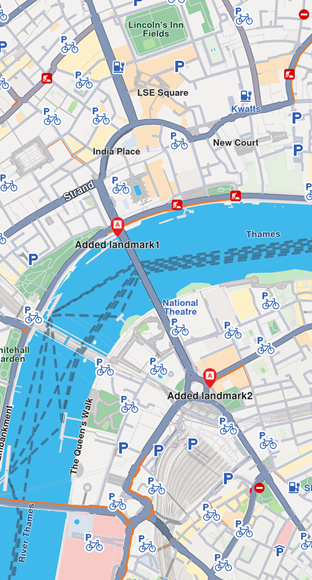
Landmarks displayed
Some methods of UnlLandmarkStoresCollection class are explained below:
add(UnlLandmarkStore lms): add a new store to be displayed on map. All the landmarks from the store will be displayed, regardless of the category provided.addAllStoreCategories(Int storeId): does the same thing asaddbut uses thestoreId, not theUnlLandmarkStoreinstance.addStoreCategoryId(Int storeId, Int categoryId): adds the landmarks with the specified category from the landmark store on the map.removeAllStoreCategories(Int storeId): removes all landmark stores from the map.contains(Int storeId, Int categoryId): check if the specified category ID from the specified store ID was already added.containsStore(UnlLandmarkStore lms): check if the specified store has any categories of landmarks shown on the map.
Highlight landmarks
Highlights allow customizing a list of landmarks, making them more visible and providing options to customize the render settings. Highlights can only be used upon Landmarks. By default, highlighted landmarks are not selectable but can be made selectable if necessary.
Highlighting a landmark allows:
- Customizing its appearance.
- Temporarily isolating it from standard interactions - it cannot be selected (default behavior, can be modified for each highlight).
💡 Tip
Landmarks retrieved through search or other means can be highlighted to enhance their prominence and customize their appearance. Additionally, custom landmarks can be highlighted, but they have to be added to a
UnlLandmarkStorefirst.
Activate highlights
Highlights can be displayed on map by using UnlMapView.activateHighlightLandmarks. For demonstration purposes, a new UnlLandmark object will be instantiated and filled with specifications using available setters. Next, the created landmark needs to be added to a List<UnlLandmark> and a HighlightRenderSettings needs to be provided in order to enable desired customizations. Then activateHighlightLandmarks can be called with a unique highlightId.
- Kotlin
- Java
// Kotlin
// Get UnlMapView from UnlMapSurfaceView
val UnlMapSurfaceView = findViewById<UnlMapSurfaceView>(R.id.gem_surface)
val mapView = UnlMapSurfaceView.mapView

val landmarksToHighlight = arrayListOf<UnlLandmark>()

// Load image from assets
val imageData = UnlImage.fromFile("assets/poi83.png")

val landmark = UnlLandmark().apply {
    name = "New UnlLandmark"
    coordinates = UnlCoordinates(52.48209, -2.48888)
    image = imageData
    extraImage = imageData
}
landmarksToHighlight.add(landmark)

// Configure highlight render settings
val settings = HighlightRenderSettings(
    options = EHighlightOptions.ShowLandmark,
    innerColor = Rgba(255, 98, 0, 255),
    outerColor = Rgba(255, 98, 0, 255),
    innerSize = 1.5,
    outerSize = 0.0
)

// Apply additional options using bitwise OR
settings.setOptions(
    EHighlightOptions.ShowLandmark.value or
    EHighlightOptions.NoFading.value or
    EHighlightOptions.Overlap.value
)

// First add landmark to a store
val landmarkStoreService = UnlLandmarkStoreService()
val (landmarkStore, errorCode) = landmarkStoreService.createLandmarkStore("landmarks")

if (errorCode == UnlError.NoError && landmarkStore != null) {
    landmarkStore.addLandmark(landmark)
    mapView?.preferences?.landmarkStores?.add(landmarkStore)

    // Activate highlight
    mapView?.activateHighlightLandmarks(
        landmarksToHighlight,
        settings,
        highlightId = 2
    )

    // Center on the landmark
    mapView?.centerOnCoordinates(UnlCoordinates(52.48209, -2.48888), zoomLevel = 40)
}
// Java
// Get UnlMapView from UnlMapSurfaceView
UnlMapSurfaceView UnlMapSurfaceView = findViewById(R.id.gem_surface);
UnlMapView mapView = UnlMapSurfaceView.getMapView();

ArrayList<UnlLandmark> landmarksToHighlight = new ArrayList<>();

// Load image from assets
UnlImage imageData = UnlImage.fromFile("assets/poi83.png");

UnlLandmark landmark = new UnlLandmark();
landmark.setName("New UnlLandmark");
landmark.setCoordinates(new UnlCoordinates(52.48209, -2.48888));
landmark.setImage(imageData);
landmark.setExtraImage(imageData);
landmarksToHighlight.add(landmark);

// Configure highlight render settings
HighlightRenderSettings settings = new HighlightRenderSettings(
    EHighlightOptions.ShowLandmark,
    new Rgba(255, 98, 0, 255),
    new Rgba(255, 98, 0, 255),
    1.5,
    0.0
);

// Apply additional options using bitwise OR
settings.setOptions(
    EHighlightOptions.ShowLandmark.getValue() |
    EHighlightOptions.NoFading.getValue() |
    EHighlightOptions.Overlap.getValue()
);

// First add landmark to a store
UnlLandmarkStoreService landmarkStoreService = new UnlLandmarkStoreService();
Pair<UnlLandmarkStore, Integer> result = landmarkStoreService.createLandmarkStore("landmarks");
UnlLandmarkStore landmarkStore = result.getFirst();
int errorCode = result.getSecond();

if (errorCode == UnlError.NoError && landmarkStore != null) {
    landmarkStore.addLandmark(landmark);
    if (mapView != null) {
        mapView.getPreferences().getLandmarkStores().add(landmarkStore);

        // Activate highlight
        mapView.activateHighlightLandmarks(
            landmarksToHighlight,
            settings,
            2 // highlightId
        );

        // Center on the landmark
        mapView.centerOnCoordinates(new UnlCoordinates(52.48209, -2.48888), 40);
    }
}
Hightlight options
The EHighlightOptions enum provides several options to customize the behavior of highlighted landmarks:
| Option | Description |
|---|---|
ShowLandmark |
Shows the landmark icon & text. By default is enabled. |
ShowContour |
Shows the landmark contour area if available. By default, this option is enabled. |
Group |
Groups landmarks when many are present in close proximity. Available only with ShowLandmark. By default it is disabled. |
Overlap |
Overlap highlight over existing map data. Available only with ShowLandmark. By default, disabled. |
NoFading |
Disable highlight fading in/out. Available only with ShowLandmark. By default, disabled. |
Bubble |
Displays highlights in a bubble with custom icon placement inside the text. Available only with ShowLandmark. Automatically invalidates Group. By default, disabled. |
Selectable |
The highlights are selectable using setCursorScreenPosition.This option is available only in conjunction with ShowLandmark By default, the option is true |
🚨 Danger
When showing bubble highlights, if the whole bubble does not fit on the screen, it will not be displayed at all. Make sure to truncate the text if the text length is very long.
🚨 Danger
For a landmark contour to be displayed, the landmark must have a valid contour area. Landmarks which have a polygon representation on OpenStreetMap will have a contour area.
Make sure the contour geographic related fields from the
extraInfoproperty of theUnlLandmarkare not removed or altered.
Deactivate highlights
To remove a displayed landmark from the map, use UnlMapView.deactivateHighlight(id) to selectively remove a specific landmark, or UnlMapView.deactivateAllHighlights() to clear all displayed landmarks at once.
- Kotlin
- Java
// Kotlin
// Get UnlMapView from UnlMapSurfaceView
val UnlMapSurfaceView = findViewById<UnlMapSurfaceView>(R.id.gem_surface)
val mapView = UnlMapSurfaceView.mapView

mapView?.deactivateHighlight(highlightId = 2)
// Java
// Get UnlMapView from UnlMapSurfaceView
UnlMapSurfaceView UnlMapSurfaceView = findViewById(R.id.gem_surface);
UnlMapView mapView = UnlMapSurfaceView.getMapView();

if (mapView != null) {
    mapView.deactivateHighlight(2);
}
Get highlighted landmarks
To get the highlighted landmarks based on a particular highlight id, you can use the geographic area of the highlight:
- Kotlin
- Java
// Kotlin
// Get UnlMapView from UnlMapSurfaceView
val UnlMapSurfaceView = findViewById<UnlMapSurfaceView>(R.id.gem_surface)
val mapView = UnlMapSurfaceView.mapView

val highlightArea = mapView?.getHighlightArea(highlightId = 2)
// Java
// Get UnlMapView from UnlMapSurfaceView
UnlMapSurfaceView UnlMapSurfaceView = findViewById(R.id.gem_surface);
UnlMapView mapView = UnlMapSurfaceView.getMapView();

Object highlightArea = null;
if (mapView != null) {
    highlightArea = mapView.getHighlightArea(2);
}
📝 Info
The Android SDK provides
getHighlightArea()instead ofgetHighlight()to retrieve information about highlights.💡 Tip
Overlay items can also be highlighted using the
activateOverlayItemsHighlightmethod in a similar way.
Disabling landmarks
Removing all presented landmarks can be done by calling removeAllStoreCategories(storeId) method of UnlLandmarkStoresCollection class. The following code does just that:
- Kotlin
- Java
// Kotlin
// Get UnlMapView from UnlMapSurfaceView
val UnlMapSurfaceView = findViewById<UnlMapSurfaceView>(R.id.gem_surface)
val mapView = UnlMapSurfaceView.mapView

// Get the landmark store service to access map POIs
val landmarkStoreService = UnlLandmarkStoreService()
val mapPoisStoreId = landmarkStoreService.mapPoisLandmarkStoreId

mapView?.preferences?.landmarkStores?.removeAllStoreCategories(mapPoisStoreId)
// Java
// Get UnlMapView from UnlMapSurfaceView
UnlMapSurfaceView UnlMapSurfaceView = findViewById(R.id.gem_surface);
UnlMapView mapView = UnlMapSurfaceView.getMapView();

// Get the landmark store service to access map POIs
UnlLandmarkStoreService landmarkStoreService = new UnlLandmarkStoreService();
int mapPoisStoreId = landmarkStoreService.getMapPoisLandmarkStoreId();

if (mapView != null) {
    mapView.getPreferences().getLandmarkStores().removeAllStoreCategories(mapPoisStoreId);
}