Display markers
The base class for the marker hierarchy is UnlMarker. It encapsulates coordinates assigned to a specific part. Multiple coordinates can be added to the same marker and be separated into different parts. If no part is specified, the coordinates are added to a default part, indexed as 0. The coordinates are stored in a list-like structure, where you can specify their index explicitly. By default, the index is set to -1, meaning the coordinate will be appended to the end of the list.
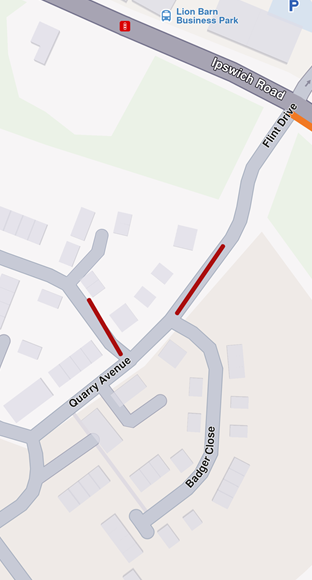
Displaying a marker with coordinates separated into different parts
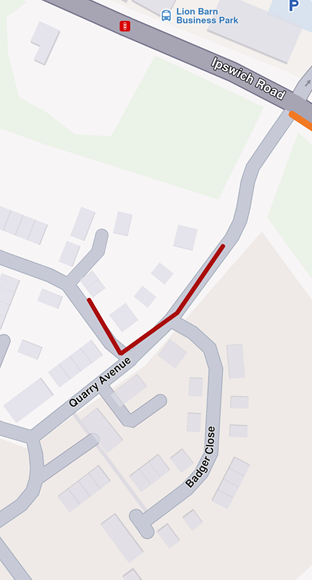
Displaying a marker with coordinates added to same part
- Kotlin
- Java
// Kotlin
// code used for displaying a marker with coordinates separated into different parts
val marker1 = UnlMarker().apply {
    add(UnlCoordinates(52.1459, 1.0613), part = 0)
    add(UnlCoordinates(52.14569, 1.0615), part = 0)
    add(UnlCoordinates(52.14585, 1.06186), part = 1)
    add(UnlCoordinates(52.14611, 1.06215), part = 1)
}
// Java
// code used for displaying a marker with coordinates separated into different parts
UnlMarker marker1 = new UnlMarker();
marker1.add(new UnlCoordinates(52.1459, 1.0613), 0);
marker1.add(new UnlCoordinates(52.14569, 1.0615), 0);
marker1.add(new UnlCoordinates(52.14585, 1.06186), 1);
marker1.add(new UnlCoordinates(52.14611, 1.06215), 1);
- Kotlin
- Java
// Kotlin
// code used for displaying a marker with coordinates added to the same part
val marker1 = UnlMarker().apply {
    add(UnlCoordinates(52.1459, 1.0613), part = 0)
    add(UnlCoordinates(52.14569, 1.0615), part = 0)
    add(UnlCoordinates(52.14585, 1.06186), part = 0)
    add(UnlCoordinates(52.14611, 1.06215), part = 0)
}
// Java
// code used for displaying a marker with coordinates added to the same part
UnlMarker marker1 = new UnlMarker();
marker1.add(new UnlCoordinates(52.1459, 1.0613), 0);
marker1.add(new UnlCoordinates(52.14569, 1.0615), 0);
marker1.add(new UnlCoordinates(52.14585, 1.06186), 0);
marker1.add(new UnlCoordinates(52.14611, 1.06215), 0);
To display any type of marker on a map, it must first be added to a UnlMarkerCollection. Creating a collection of markers requires providing a name and specifying the desired EMarkerType enum as parameters for its constructor. The collection of markers displayed above used EMarkerType.Polyline, but it can also be EMarkerType.Point or EMarkerType.Polygon.
Once the UnlMarkerCollection object has been populated, it must be added to the MapViewMarkerCollections field within the UnlMapViewPrefernces class. This can be accessed through the UnlMapView, as shown below:
- Kotlin
- Java
// Kotlin
mapView.preferences?.markers?.add(markerCollection)
// Java
if (mapView.getPreferences() != null) {
    mapView.getPreferences().getMarkers().add(markerCollection);
}
Point Type UnlMarker
Visually represented as an icon, it is used to dynamically highlight user-defined locations. To display a point-type marker, the UnlMarkerCollection to which the markers are added must be of the EMarkerType.Point type.
- Kotlin
- Java
// Kotlin
val marker = UnlMarker().apply {
    add(UnlCoordinates(52.1459, 1.0613), part = 0)
    add(UnlCoordinates(52.14569, 1.0615), part = 0)
    add(UnlCoordinates(52.14585, 1.06186), part = 1)
    add(UnlCoordinates(52.14611, 1.06215), part = 1)
}

val markerCollection = UnlMarkerCollection(EMarkerType.Point, "myCollection")

markerCollection.add(marker)

mapView.preferences?.markers?.add(markerCollection)
mapView.centerOnArea(markerCollection.area)
// Java
UnlMarker marker = new UnlMarker();
marker.add(new UnlCoordinates(52.1459, 1.0613), 0);
marker.add(new UnlCoordinates(52.14569, 1.0615), 0);
marker.add(new UnlCoordinates(52.14585, 1.06186), 1);
marker.add(new UnlCoordinates(52.14611, 1.06215), 1);

UnlMarkerCollection markerCollection = new UnlMarkerCollection(EMarkerType.Point, "myCollection");

markerCollection.add(marker);

if (mapView.getPreferences() != null) {
    mapView.getPreferences().getMarkers().add(markerCollection);
}
mapView.centerOnArea(markerCollection.getArea());
The result will be the following:
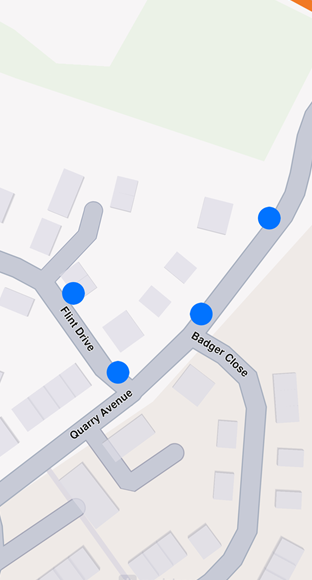
Displaying point-type markers on map
⚠️ Warning
By default, point-type markers appear as blue circles up to a specific zoom level. When the zoom threshold is exceeded, they automatically cluster into orange circles, and at higher levels of clustering, they transition to red circles. Learn more at UnlMarker Clustering
Polyline Type UnlMarker
This type of marker is designed to display a continuous line consisting of one or more connected straight-line segments. To use it, ensure the UnlMarkerCollection specifies type as EMarkerType.Polyline. It's important to note that markers can include multiple coordinates, which may or may not belong to the same part. UnlCoordinates within the same part are connected by a polyline, which is red by default, while coordinates outside the part remain unconnected.
For more information, see Markers section.
Polygon Type UnlMarker
This type of marker is designed to display a closed two-dimensional figure composed of straight-line segments that meet at their endpoints. To use it, ensure the UnlMarkerCollection specifies type as EMarkerType.Polygon.
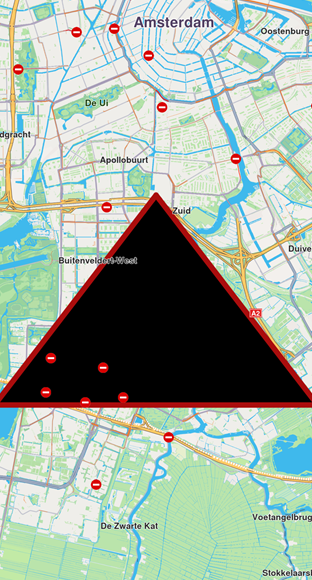
Polygon drawn between three coordinates
📝 Info
To successfully create a polygon, at least three coordinates must be added to the same part. Otherwise, the result will be an open polyline rather than a closed shape.
Polygons can be customized using properties like polygonFillColor. Additionally, since polygon edges are essentially polylines, you can further refine their appearance with polyline-related attributes such as polylineInnerColor, polylineOuterColor, polylineInnerSize, and polylineOuterSize.
UnlMarker Customizations
To customize the appearance of markers on the map, you can use the UnlMarkerCollectionRenderSettings class.
This class is designed for customizing the appearance of individual markers. It includes various fields that can influence a marker's appearance, regardless of its type, as it provides customizable features for all marker types. For example:
- For markers of type
EMarkerType.Polyline, you can use fields such aspolylineInnerColor,polylineOuterColor,polylineInnerSize, andpolylineOuterSize. - For
EMarkerType.Polygon, thepolygonFillColorfields are available, among others. - For
EMarkerType.Point, you can use fields such aslabelTextColor,labelTextSize,image,imageSize.
All dimensional sizes (imageSize, labelTextSize, etc.) are measured in millimeters.
📝 Info
If customizations unrelated to a marker's specific type are applied - for example, using
polylineInnerColorfor aEMarkerType.Point-they will simply be ignored, and the marker's appearance will remain unaffected.
For EMarkerType.Point, a key customizable field is labelingMode. This field uses values from EMarkerLabelingMode enum. This allows you to enable desired features, such as positioning the label text above the icon by setting the appropriate labeling mode as shown below:
- Kotlin
- Java
// Kotlin
val renderSettings = UnlMarkerCollectionRenderSettings().apply {
    labelingMode = EMarkerLabelingMode.Item
    //labelingMode = EMarkerLabelingMode.ItemCenter
}

mapView.preferences?.markers?.add(markerCollection, renderSettings)
// Java
UnlMarkerCollectionRenderSettings renderSettings = new UnlMarkerCollectionRenderSettings();
renderSettings.setLabelingMode(EMarkerLabelingMode.Item);
//renderSettings.setLabelingMode(EMarkerLabelingMode.ItemCenter);

if (mapView.getPreferences() != null) {
    mapView.getPreferences().getMarkers().add(markerCollection, renderSettings);
}
📝 Info
To hide a marker's name or its group's name, create a
UnlMarkerCollectionRenderSettingsobject with alabelingModethat excludesEMarkerLabelingMode.ItemandEMarkerLabelingMode.Group. By default, both options are enabled.
The above code will result in the following marker appearance:
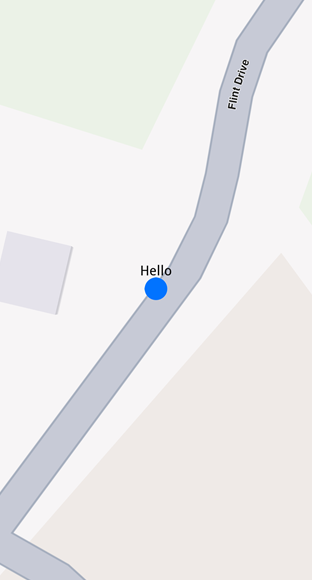
Displaying a marker with text above icon
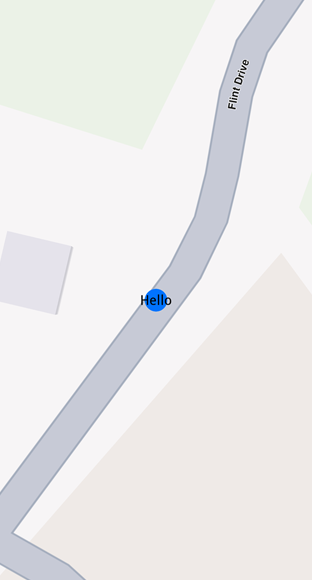
Displaying a marker with text centered on icon
📝 Info
To assign a name to a marker, use the
nameproperty of theUnlMarkerclass.
To customize the icons of the displayed markers, add the collection to MapViewMarkerCollections and configure a UnlMarkerCollectionRenderSettings instance with the relevant image field. This field controls the appearance of the entire collection.
- Kotlin
- Java
// Kotlin
val imageData = assets.open("poi83.png").readBytes()
val image = UnlImage.produceWithData(imageData)

val renderSettings = UnlMarkerCollectionRenderSettings().apply {
    this.image = image
}
// Java
byte[] imageData = getAssets().open("poi83.png").readAllBytes();
UnlImage image = UnlImage.produceWithData(imageData);

UnlMarkerCollectionRenderSettings renderSettings = new UnlMarkerCollectionRenderSettings();
renderSettings.setImage(image);
Code above is setting a custom icon to a marker. The result is the following:
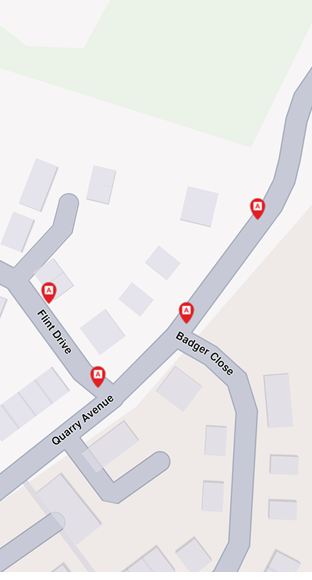
Displaying point-type markers with render settings
UnlMarker Sketches
To customize the appearance of each marker individually, use the MarkerSketches class, which extends UnlMarkerCollection. This lets you define unique styles and properties for every marker. You can obtain a MarkerSketches object using the MapViewMarkerCollections.sketches() method:
- Kotlin
- Java
// Kotlin
val sketches = mapView.preferences?.markers?.sketches(EMarkerType.Point)
// Java
MarkerSketches sketches = null;
if (mapView.getPreferences() != null) {
    sketches = mapView.getPreferences().getMarkers().sketches(EMarkerType.Point);
}
Typical operations are adding a sketch with an optional per‑marker render configuration and position, reading a sketch's rendering configuration.
📝 Info
There are only three
MarkerSketchescollections, one for each marker type:EMarkerType.Point,EMarkerType.Polyline, andEMarkerType.Polygon. Each collection is singleton.
Adding markers to a MarkerSketches collection is similar to adding them to a UnlMarkerCollection. However, when adding markers to a MarkerSketches collection, you can specify individual UnlMarkerRenderSettings and index for each marker. This allows for greater customization of each marker's appearance.
- Kotlin
- Java
// Kotlin
val marker1 = UnlMarker().apply {
    add(UnlCoordinates(39.76741, -46.8962))
    name = "HelloMarker"
}

sketches?.add(marker1,
    UnlMarkerRenderSettings().apply {
        labelTextColor = Rgba.red()
        labelTextSize = 3.0
        image = UnlImage.produceWithId(SdkImages.Core.Toll.value)
    },
    index = 0)
// Java
UnlMarker marker1 = new UnlMarker();
marker1.add(new UnlCoordinates(39.76741, -46.8962));
marker1.setName("HelloMarker");

UnlMarkerRenderSettings markerRenderSettings = new UnlMarkerRenderSettings();
markerRenderSettings.setLabelTextColor(Rgba.red());
markerRenderSettings.setLabelTextSize(3.0);
markerRenderSettings.setImage(UnlImage.produceWithId(SdkImages.Core.Toll.getValue()));

if (sketches != null) {
    sketches.add(marker1, markerRenderSettings, 0);
}

Displaying a marker using MarkerSketches
In order to change a marker's appearance after it has been added to a MarkerSketches collection, you can use setRenderSettings method:
- Kotlin
- Java
// Kotlin
sketches?.setRenderSettings(
    0, // marker index
    UnlMarkerRenderSettings().apply {
        labelTextColor = Rgba.red()
        labelTextSize = 3.0
        image = UnlImage.produceWithId(SdkImages.Core.Toll.value)
    }
)
// Java
UnlMarkerRenderSettings newSettings = new UnlMarkerRenderSettings();
newSettings.setLabelTextColor(Rgba.red());
newSettings.setLabelTextSize(3.0);
newSettings.setImage(UnlImage.produceWithId(SdkImages.Core.Toll.getValue()));

if (sketches != null) {
    sketches.setRenderSettings(0, newSettings);
}
In order to obtain the current render settings of a marker, you can use getRenderSettings method called with the marker index:
- Kotlin
- Java
// Kotlin
val returnedSettings = sketches?.getRenderSettings(0)
// Java
UnlMarkerRenderSettings returnedSettings = null;
if (sketches != null) {
    returnedSettings = sketches.getRenderSettings(0);
}
🚨 Danger Calling
getRenderSettingswith an invalid index will return aUnlMarkerRenderSettingsobject with default values.
The MarkerSketches collection does not need to be added to MapViewMarkerCollections, as it is already part of it. Any changes made to the MarkerSketches collection will be automatically reflected on the map.
💡 Tip Adding a
MarkerSketchesobject toMapViewMarkerCollectionswithUnlMarkerCollectionRenderSettingswill be overwritten by the individualUnlMarkerRenderSettingsof markers from the collection.
UnlMarker Clustering
Clustering or grouping is a default feature of markers. Beyond a certain zoom level, the markers automatically cluster into a single marker containing a number of items lesser than lowDensityPointsGroupMaxCount if the group is a low density one. The image of those groups can be customized with lowDensityPointsGroupImage, mediumDensityPointsGroupImage, highDensityPointsGroupImage fields of UnlMarkerCollectionRenderSettings. The number of markers contained by a group can be set through lowDensityPointsGroupMaxCount, mediumDensityPointsGroupMaxCount.
Grouping behaviour
- Kotlin
- Java
// Kotlin
// code for markers not grouping at zoom level 70
val renderSettings = UnlMarkerCollectionRenderSettings()

mapView.preferences?.markers?.add(markerCollection, renderSettings)

mapView.centerOnCoordinates(UnlCoordinates(52.14611, 1.06215), zoomLevel = 70)
// Java
// code for markers not grouping at zoom level 70
UnlMarkerCollectionRenderSettings renderSettings = new UnlMarkerCollectionRenderSettings();

if (mapView.getPreferences() != null) {
    mapView.getPreferences().getMarkers().add(markerCollection, renderSettings);
}

mapView.centerOnCoordinates(new UnlCoordinates(52.14611, 1.06215), 70);
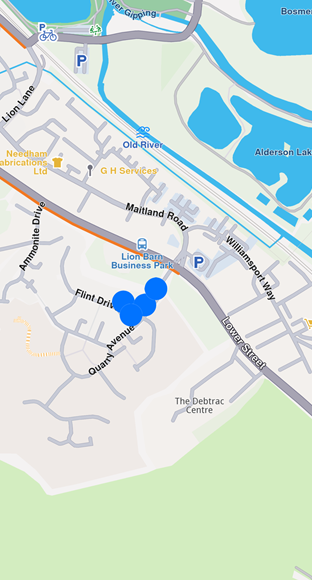
Markers not clustering
- Kotlin
- Java
// Kotlin
// code for markers grouping at zoom level 70
val renderSettings = UnlMarkerCollectionRenderSettings().apply {
    labelTextSize = 3.0
    labelingMode = EMarkerLabelingMode.Item
    pointsGroupingZoomLevel = 70
}

mapView.preferences?.markers?.add(markerCollection, renderSettings)

mapView.centerOnCoordinates(UnlCoordinates(52.14611, 1.06215), zoomLevel = 70)
// Java
// code for markers grouping at zoom level 70
UnlMarkerCollectionRenderSettings renderSettings = new UnlMarkerCollectionRenderSettings();
renderSettings.setLabelTextSize(3.0);
renderSettings.setLabelingMode(EMarkerLabelingMode.Item);
renderSettings.setPointsGroupingZoomLevel(70);

if (mapView.getPreferences() != null) {
    mapView.getPreferences().getMarkers().add(markerCollection, renderSettings);
}

mapView.centerOnCoordinates(new UnlCoordinates(52.14611, 1.06215), 70);
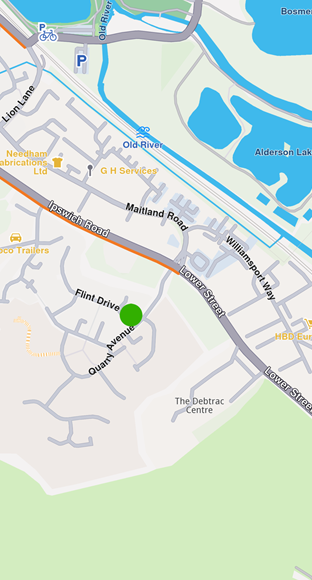
Clustered markers
📝 Info
You can disable marker clustering by setting the
pointsGroupingZoomLevelto 0. However, note that doing so for a large number of markers may significantly impact performance, as rendering each individual marker increases GPU resource usage.
UnlMarker clusters are represented by the first marker from the collection as the group head. The group head marker is returned by the getPointsGroupHead method:
- Kotlin
- Java
// Kotlin
val markerCollection = UnlMarkerCollection(EMarkerType.Point, "Collection1")

val marker1 = UnlMarker().apply {
    add(UnlCoordinates(39.76717, -46.89583))
    name = "NiceName"
}
val marker2 = UnlMarker().apply {
    add(UnlCoordinates(39.767138, -46.895640))
    name = "NiceName2"
}
val marker3 = UnlMarker().apply {
    add(UnlCoordinates(39.767145, -46.895690))
    name = "NiceName3"
}

markerCollection.add(marker1)
markerCollection.add(marker2)
markerCollection.add(marker3)

mapView.preferences?.markers?.add(markerCollection,
    UnlMarkerCollectionRenderSettings().apply {
        buildPointsGroupConfig = true
    })

// This centering triggers marker grouping
mapView.centerOnCoordinates(
    UnlCoordinates(39.76717, -46.89583),
    zoomLevel = 50)

// Wait for the center process to finish
Thread.sleep(250)

val marker = markerCollection.getPointsGroupHead(marker2.id) // Returns marker1
// Java
UnlMarkerCollection markerCollection = new UnlMarkerCollection(EMarkerType.Point, "Collection1");

UnlMarker marker1 = new UnlMarker();
marker1.add(new UnlCoordinates(39.76717, -46.89583));
marker1.setName("NiceName");

UnlMarker marker2 = new UnlMarker();
marker2.add(new UnlCoordinates(39.767138, -46.895640));
marker2.setName("NiceName2");

UnlMarker marker3 = new UnlMarker();
marker3.add(new UnlCoordinates(39.767145, -46.895690));
marker3.setName("NiceName3");

markerCollection.add(marker1);
markerCollection.add(marker2);
markerCollection.add(marker3);

UnlMarkerCollectionRenderSettings groupSettings = new UnlMarkerCollectionRenderSettings();
groupSettings.setBuildPointsGroupConfig(true);

if (mapView.getPreferences() != null) {
    mapView.getPreferences().getMarkers().add(markerCollection, groupSettings);
}

// This centering triggers marker grouping
mapView.centerOnCoordinates(
    new UnlCoordinates(39.76717, -46.89583),
    50);

// Wait for the center process to finish
Thread.sleep(250);

UnlMarker marker = markerCollection.getPointsGroupHead(marker2.getId()); // Returns marker1
Since marker grouping depends on the loading of tiles at a certain zoom level, you need to wait for them to load; otherwise, calling getPointsGroupHead will return a reference to the queried marker, because the markers are not yet grouped. Thus getPointsGroupComponents will return an empty list.
🚨 Danger
This behavior occurs only when the
UnlMarkerCollectionis added toMapViewMarkerCollectionsusingUnlMarkerCollectionRenderSettings().apply { buildPointsGroupConfig = true }and the markers are grouped based on the zoom level. In all other cases, the method returns a direct reference to the queried marker.
All markers from a group can be returned by using getPointsGroupComponents method called with the head marker id, returned by UnlMarkerCollection.getPointsGroupHead method, which is considered the groupId. This method returns all markers except the group head marker.
- Kotlin
- Java
// Kotlin
val marker = markerCollection.getPointsGroupHead(marker2.id)

val groupMarkers = markerCollection.getPointsGroupComponents(marker?.id ?: 0)
// Java
UnlMarker marker = markerCollection.getPointsGroupHead(marker2.getId());

List<UnlMarker> groupMarkers = markerCollection.getPointsGroupComponents(
    marker != null ? marker.getId() : 0);
🚨 Danger
If
getPointsGroupComponentsis not invoked with the ID of the group head marker, the method will return an empty list.
Adding large amount of markers
If there is a need for adding lots of markers at the same time, you can add them directly to a UnlMarkerCollection efficiently. For individual marker customization, use MarkerSketches. The following example shows how to add multiple markers:
- Kotlin
- Java
// Kotlin
val markerCollection = UnlMarkerCollection(EMarkerType.Point, "PoiMarkers")

// Add markers to the collection
for (i in 0 until 8000) {
    // Generate random coordinates to display some markers
    val randomLat = minLat + Random.nextDouble() * (maxLat - minLat)
    val randomLon = minLon + Random.nextDouble() * (maxLon - minLon)

    val marker = UnlMarker().apply {
        add(UnlCoordinates(randomLat, randomLon))
        name = "POI $i"
    }

    markerCollection.add(marker)
}

// Create the settings for the collections
val settings = UnlMarkerCollectionRenderSettings().apply {
    // Set the label size
    labelGroupTextSize = 2.0

    // The zoom level at which the markers will be grouped together
    pointsGroupingZoomLevel = 35

    // Set the image of the collection
    image = UnlImage.produceWithData(imageBytes)
}

// Add the markers and the settings on the map
mapView.preferences?.markers?.add(markerCollection, settings)
// To clear all markers you can use: mapView.preferences?.markers?.clear()
//Java
UnlMarkerCollection markerCollection = new UnlMarkerCollection(EMarkerType.Point, "PoiMarkers");

// Add markers to the collection
for (int i = 0; i < 8000; i++) {
    // Generate random coordinates to display some markers
    double randomLat = minLat + Math.random() * (maxLat - minLat);
    double randomLon = minLon + Math.random() * (maxLon - minLon);

    UnlMarker marker = new UnlMarker();
    marker.add(new UnlCoordinates(randomLat, randomLon));
    marker.setName("POI " + i);

    markerCollection.add(marker);
}

// Create the settings for the collections
UnlMarkerCollectionRenderSettings settings = new UnlMarkerCollectionRenderSettings();
// Set the label size
settings.setLabelGroupTextSize(2.0);

// The zoom level at which the markers will be grouped together
settings.setPointsGroupingZoomLevel(35);

// Set the image of the collection
settings.setImage(UnlImage.produceWithData(imageBytes));

// Add the markers and the settings on the map
if (mapView.getPreferences() != null) {
    mapView.getPreferences().getMarkers().add(markerCollection, settings);
    // To clear all markers you can use: mapView.getPreferences().getMarkers().clear();
}