Show location on map
The location of the device is shown by default using an arrow position tracker. If the data source has been successfully set and the required permissions were granted then the position tracker showing the current location should be visible on the map as an arrow.
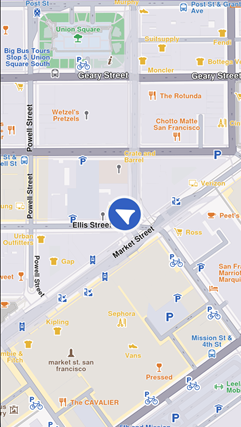
Default position tracker showing current position
At the moment it is not possible to have multiple position trackers on the map.
📝 Info
GPS accuracy may be limited in environments such as indoor spaces, areas with weak GPS signals, or locations with significant obstructions, such as narrow streets or between tall buildings. In these situations, the tracker may exhibit erratic movement within a confined area. Additionally, the performance of device sensors, such as the accelerometer and gyroscope, can further impact GPS positioning accuracy.
This behavior is more pronounced when the device is stationary.
Start follow position
Following the position tracker can be done by calling the startFollowingPosition() method on the UnlMapView.
- Kotlin
- Java
// Kotlin
mapView.startFollowingPosition()
// Java
mapView.startFollowingPosition();
When the startFollowingPosition() method is called, the camera enters a mode where it automatically follows the movement and rotation of the position tracker. This ensures the user's current location and orientation are consistently centered and updated on the map.
The startFollowingPosition() method can take parameters such as animation, which controls the movement from the current map camera position to the position of the tracker, zoomLevel and viewAngle.
Set map rotation mode
When following position, it is possible to have the map rotated with the user orientation:
- Kotlin
- Java
// Kotlin
val prefs = mapView.preferences?.followPositionPreferences
prefs?.setMapRotationMode(EFollowPositionMapRotationMode.PositionHeading)
// Java
FollowPositionPreferences prefs = mapView.getPreferences().getFollowPositionPreferences();
if (prefs != null) {
    prefs.setMapRotationMode(EFollowPositionMapRotationMode.PositionHeading);
}
If you want to use the compass sensor for map rotation use EFollowPositionMapRotationMode.Compass:
- Kotlin
- Java
// Kotlin
val prefs = mapView.preferences?.followPositionPreferences
prefs?.setMapRotationMode(EFollowPositionMapRotationMode.Compass)
// Java
FollowPositionPreferences prefs = mapView.getPreferences().getFollowPositionPreferences();
if (prefs != null) {
    prefs.setMapRotationMode(EFollowPositionMapRotationMode.Compass);
}
The map rotation can also be fixed to a given angle using the EFollowPositionMapRotationMode.Fixed value and providing a mapAngle value:
- Kotlin
- Java
val prefs = mapView.preferences?.followPositionPreferences
prefs?.setMapRotationMode(EFollowPositionMapRotationMode.Fixed, angle = 30.0)
FollowPositionPreferences prefs = mapView.getPreferences().getFollowPositionPreferences();
if (prefs != null) {
    prefs.setMapRotationMode(EFollowPositionMapRotationMode.Fixed, 30.0);
}
A value of 0.0 given for the angle parameter represents north-up alignment.
The mapRotationMode returns a Pair containing:
- the current
EFollowPositionMapRotationModemode - the map angle set in case of
EFollowPositionMapRotationMode.Fixed
Exit follow position
The stopFollowingPosition() method from the UnlMapView can be used to programmatically stop following the position.
- Kotlin
- Java
// Kotlin
mapView.stopFollowingPosition()
// Java
mapView.stopFollowingPosition();
The follow mode will be exited automatically if the user interacts with the map. Actions such as panning, or tilting will disable the camera's automatic tracking. This can be deactivated by setting touchHandlerExitAllow to false (see the section below).
Customize follow position settings
The FollowPositionPreferences class has options which can be used to customize the behavior of following the position. This can be accessed from the preferences property of the UnlMapView.
The fields defined in FollowPositionPreferences take effect only when the camera is in follow position mode. To customize camera behavior when not following the position, refer to the fields available in UnlMapViewPrefernces and UnlMapView.
| Field | Type | Explanation |
|---|---|---|
| cameraFocus | UnlXyF | The position on the viewport where the position tracker is located on the screen. |
| timeBeforeTurnPresentation | Int | The time interval before starting a turn presentation |
| touchHandlerExitAllow | Boolean | If set to false then gestures made by the user will exit follow position mode |
| touchHandlerModifyPersistent | Boolean | If set to true then changes made by the user using gestures are persistent |
| viewAngle | Double | The viewAngle used within follow position mode |
| zoomLevel | Int | The zoomLevel used within follow position mode |
| accuracyCircleVisible | Boolean | Specifies if the accuracy circle should be visible (regardless if is in follow position mode or not) |
| isTrackObjectFollowingMapRotation | Boolean | Specifies if the track object should follow the map rotation |
Please refer to the adjust map guide for more information about the viewAngle, zoomLevel and cameraFocus fields.
If no zoom level is set, a default value is used.
Use of touchHandlerModifyPersistent
When the camera enters follow position mode and manually adjusts the zoom level or view angle, these modifications are retained until the mode is exited, either manually or programmatically.
If touchHandlerModifyPersistent is set to true, then invoking startFollowingPosition() (with default parameters for zoom and angle) will restore the zoom level and view angle from the previous follow position session.
If touchHandlerModifyPersistent is set to false, then calling startFollowingPosition() (with default zoom and angle parameters) will result in appropriate values for the zoom level and view angle being recalculated.
💡 Tip
It is recommended to set the
touchHandlerModifyPersistentproperty value right before calling thestartFollowingPosition()method.
Use of touchHandlerExitAllow
If the camera is in follow position mode and the touchHandlerExitAllow property is set to true, a two-finger pan gesture in a non-vertical direction will cause the camera to exit follow position mode.
If touchHandlerExitAllow is set to false, the user cannot manually exit follow position mode through touch gestures. In this case, the mode can only be exited programmatically by calling the stopFollowingPosition() method.
Set circle visibility
For example, in order to show the accuracy circle visibility on the map (which is by default hidden):
- Kotlin
- Java
// Kotlin
val prefs = mapView.preferences?.followPositionPreferences
prefs?.accuracyCircleVisible = true
// Java
FollowPositionPreferences prefs = mapView.getPreferences().getFollowPositionPreferences();
if (prefs != null) {
    prefs.setAccuracyCircleVisible(true);
}
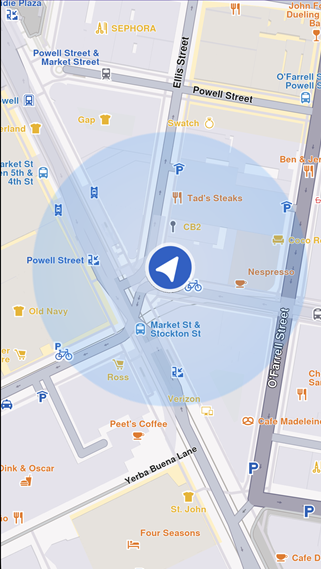
Accuracy circle turned on
Customize circle color
The accuracy circle color can be set using the setDefPositionTrackerAccuracyCircleColor() static method from the MapSceneObject class:
- Kotlin
- Java
// Kotlin
val setErrorCode = MapSceneObject.setDefPositionTrackerAccuracyCircleColor(Rgba(255, 0, 0, 255))
Log.d(TAG, "Error code for setting the circle color: $setErrorCode")
// Java
UnlError setErrorCode = MapSceneObject.setDefPositionTrackerAccuracyCircleColor(new Rgba(255, 0, 0, 255));
Log.d(TAG, "Error code for setting the circle color: " + setErrorCode);
💡 Tip
It is recommended to use colors with partial opacity instead of fully opaque colors for improved visibility and usability.
The current color can be retrieved using the getDefPositionTrackerAccuracyCircleColor() static method:
- Kotlin
- Java
// Kotlin
val color = MapSceneObject.getDefPositionTrackerAccuracyCircleColor()
// Java
Rgba color = MapSceneObject.getDefPositionTrackerAccuracyCircleColor();
The color can be reset to the default value using the resetDefPositionTrackerAccuracyCircleColor() static method:
- Kotlin
- Java
// Kotlin
val resetErrorCode = MapSceneObject.resetDefPositionTrackerAccuracyCircleColor()
Log.d(TAG, "Error code for resetting the circle color: $resetErrorCode")
// Java
UnlError resetErrorCode = MapSceneObject.resetDefPositionTrackerAccuracyCircleColor();
Log.d(TAG, "Error code for resetting the circle color: " + resetErrorCode);
Set position of the position tracker on the viewport
In order to set the position tracker on a particular spot of the viewport while in follow position mode the cameraFocus property can be used:
- Kotlin
- Java
// Kotlin
// Calculate the position relative to the viewport
val twoThirdsX = 2.0f / 3.0f
val threeFifthsY = 3.0f / 5.0f
val position = UnlXyF(twoThirdsX, threeFifthsY)

// Set the position of the position tracker in the viewport
// while in follow position mode
val prefs = mapView.preferences?.followPositionPreferences
prefs?.cameraFocus = position

mapView.startFollowingPosition()
// Java
// Calculate the position relative to the viewport
float twoThirdsX = 2.0f / 3.0f;
float threeFifthsY = 3.0f / 5.0f;
UnlXyF position = new UnlXyF(twoThirdsX, threeFifthsY);

// Set the position of the position tracker in the viewport
// while in follow position mode
FollowPositionPreferences prefs = mapView.getPreferences().getFollowPositionPreferences();
if (prefs != null) {
    prefs.setCameraFocus(position);
}

mapView.startFollowingPosition();
The cameraFocus property uses a coordinate system relative to the viewport, not physical pixels. In this way UnlXyF(0.0f, 0.0f) corresponds with top left corner and UnlXyF(1.0f, 1.0f) corresponds with right bottom corner.
Customize position icon
The SDK supports customizing the position tracker to suit your application's requirements. For example, you can set a simple PNG as the position tracker using the following approach:
- Kotlin
- Java
// Kotlin
// Read the file and load the image as a binary resource
val inputStream = assets.open("navArrow.png")
val imageByteArray = inputStream.readBytes()

// Customize the position tracker
MapSceneObject.customizeDefPositionTracker(imageByteArray, SceneObjectFileFormat.tex)
// Java
// Read the file and load the image as a binary resource
InputStream inputStream = getAssets().open("navArrow.png");
byte[] imageByteArray = inputStream.readAllBytes();

// Customize the position tracker
MapSceneObject.customizeDefPositionTracker(imageByteArray, SceneObjectFileFormat.tex);
Besides simple 2D icons, 3D objects as glb files can be set. The format parameter of the customizeDefPositionTracker() should be set to SceneObjectFileFormat.glb in this case.
At this moment it is not possible to set different icons for different maps.
🚨 Danger
Make sure the resource (in this example
navArrow.png) is correctly placed in theassetsfolder. See the Android documentation for more information.
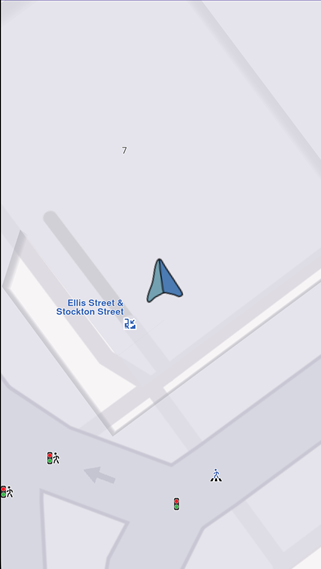
Custom position tracker
Other position tracker settings
Other settings such as scale and the visibility of the position tracker can be changed using the methods available on the MapSceneObject which can be obtained using MapSceneObject.getDefPositionTracker().
Change the position tracker scale
To change the scale of the position tracker we can use the scale property:
- Kotlin
- Java
// Kotlin
// Get the position tracker
val mapSceneObject = MapSceneObject.getDefPositionTracker()

// Change the scale
mapSceneObject?.scale = 0.5f
// Java
// Get the position tracker
MapSceneObject mapSceneObject = MapSceneObject.getDefPositionTracker();

// Change the scale
if (mapSceneObject != null) {
    mapSceneObject.setScale(0.5f);
}
A value of 1.0 corresponds with the default scale value. The parameter passed to the property should be in the range (0, mapSceneObject.maxScale]. The code snippet from above sets half the scale.
Info
The scale of the position tracker stays constant on the viewport regardless of the map zoom level.
Change the position tracker visibility
To change the visibility of the position tracker we can use the visibility property:
- Kotlin
- Java
// Kotlin
// Get the position tracker
val mapSceneObject = MapSceneObject.getDefPositionTracker()

// Change the visibility
mapSceneObject?.visibility = false
// Java
// Get the position tracker
MapSceneObject mapSceneObject = MapSceneObject.getDefPositionTracker();

// Change the visibility
if (mapSceneObject != null) {
    mapSceneObject.setVisibility(false);
}
The snippet above makes the position tracker invisible.
Follow position events
The SDK provides callbacks to monitor when the UnlMapView enters or exits follow position mode:
- Kotlin
- Java
// Kotlin
mapView.onEnterFollowingPosition = {
    Log.d(TAG, "Entered follow position mode")
    // Hide GPS button or update UI
}

mapView.onExitFollowingPosition = {
    Log.d(TAG, "Exited follow position mode")
    // Show GPS button or update UI
}
// Java
mapView.setOnEnterFollowingPosition(() -> {
    Log.d(TAG, "Entered follow position mode");
    // Hide GPS button or update UI
});

mapView.setOnExitFollowingPosition(() -> {
    Log.d(TAG, "Exited follow position mode");
    // Show GPS button or update UI
});
You can also check if the UnlMapView is currently following position:
- Kotlin
- Java
// Kotlin
val isFollowing = mapView.isFollowingPosition()
Log.d(TAG, "Currently following position: $isFollowing")
// Java
boolean isFollowing = mapView.isFollowingPosition();
Log.d(TAG, "Currently following position: " + isFollowing);